






How an Android App Development Company Optimizes Apps for Every Android Device
Viktor runs a field service business in Poland, twelve technicians dispatched daily to industrial sites across three provinces. Two years ago he commissioned an Android app to replace the paper job cards his team had been using. The app worked well on the Samsung Galaxy devices he’d bought for his senior technicians. It behaved strangely on the older Huawei handsets two of his technicians were using. On the budget Realme phone one technician had brought from home, it crashed during the job completion flow roughly every fourth attempt.
Three devices. Three completely different experiences. Same app, same version, same code.
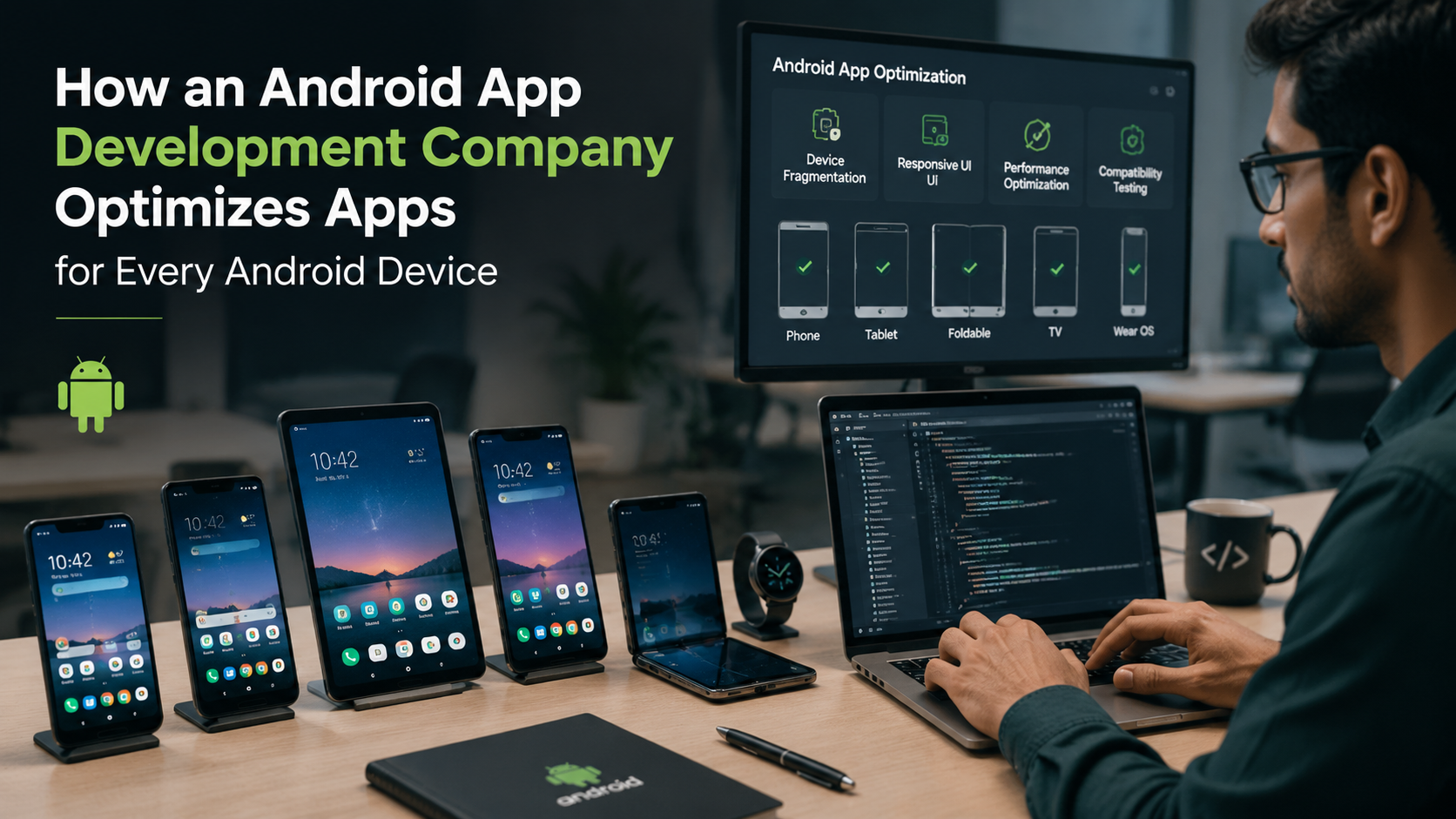
This is the Android fragmentation problem in practice, and it’s the operational reality that separates a professionally built Android app from one that looks fine in a demo and causes headaches in the field. Any competent android app development company spends a significant portion of every project working on the parts of optimization that users never see but feel constantly: layout adaptation, performance tuning, hardware compatibility, and device-specific testing. Here’s what that work actually involves.
The Scale of the Fragmentation Challenge
Android runs on somewhere between three and four billion active devices worldwide. Those devices span hundreds of manufacturers, thousands of distinct hardware configurations, screen sizes from compact 4.7-inch phones to 12-inch tablets, processors ranging from current-generation Snapdragon 8 Elite chips to five-year-old MediaTek budget SoCs, RAM from 2GB on entry-level devices to 16GB on flagships, and Android OS versions from Android 10 through Android 15 all in active use simultaneously.
No single test device represents that range. No emulator fully replicates the behavior of real hardware at the edges of that range. Optimization for this environment isn’t a checklist item; it’s an ongoing practice built into how a team develops and tests from the first sprint through post-launch maintenance.
Adaptive Layouts That Respond to Screen Reality
A fixed-width layout that looks polished on a 6.1-inch 1080p display breaks on a 5.0-inch 720p budget phone and wastes space on a 6.7-inch display or a tablet. Android’s responsive design system provides the tools to handle this properly: ConstraintLayout for flexible positioning that adapts to different dimensions, window size classes for distinguishing compact, medium, and expanded screen configurations, and the new canonical layouts in Jetpack Compose for common patterns like list-detail views that need to behave differently on small phones versus tablets.
The SizeClass API in Jetpack Compose and the equivalent in the View system let a developer define layouts that adapt automatically to the available space rather than requiring separate layout files for every breakpoint. This matters particularly for business apps used on both phones and tablets, where the same information architecture needs to feel purposeful on both form factors rather than just stretched or shrunk.
For Viktor’s field service app, the job card form needed to work efficiently on a small phone one-handed in a noisy environment and on the tablet one of his site managers used from a desk. Two meaningfully different interaction designs running from the same underlying data layer.
Performance Tuning for Low-End Hardware
A Snapdragon 8 Elite can render complex animations at 120fps without effort. A MediaTek Helio A22 in a budget phone cannot, and pushing complex animations on underpowered hardware produces exactly the kind of stuttering and lag that makes an app feel broken to a user who doesn’t understand why it’s happening.
Profiling with Android Studio’s CPU Profiler and Memory Profiler identifies exactly where the performance budget is being consumed. Overdraw analysis finds places where the GPU is drawing pixels multiple times unnecessarily. Janky frame detection in the GPU rendering tool shows where frame times are exceeding the 16ms budget for 60fps rendering.
The fixes are usually surgical: flattening view hierarchies to reduce draw calls, replacing complex vector animations with simpler alternatives on low-end devices detected at runtime, implementing proper RecyclerView recycling so list scrolling stays smooth regardless of list length, and being deliberate about background work scheduling using WorkManager rather than running background tasks that compete with the UI thread.
Battery consumption is part of performance on low-end devices, where a power-hungry app drains a smaller battery faster and triggers aggressive background process killing from the OS. WakeLock management, location request frequency, and background sync scheduling all affect battery behavior in ways that users on budget devices notice more acutely than flagship users.
Hardware Compatibility Across Manufacturer Variants
Android’s open nature means manufacturers customize it significantly. Samsung’s One UI, MIUI on Xiaomi devices, ColorOS on OPPO, and EMUI on Huawei devices all add manufacturer-specific behaviors on top of stock Android. These customizations affect how apps behave in the background, how permissions are managed, how notifications are displayed, and occasionally how specific APIs behave.
Background process handling is the most common source of manufacturer-specific bugs. Some manufacturer-modified Android implementations are more aggressive about killing background processes to save battery than stock Android, which breaks apps that assume certain background tasks will run reliably. The dontkillmyapp.com database documents device-specific behaviors that Android’s official documentation doesn’t cover, and experienced Android teams know which manufacturers require specific workarounds for specific features.
Camera API behavior varies significantly across manufacturers and hardware generations. An app using CameraX, Google’s recommended camera abstraction library, handles much of this variation automatically, but edge cases with specific camera hardware still require device-specific testing to surface.
Testing Infrastructure That Covers Real Devices
Best Android emulators for development, the built-in Android Virtual Device in Android Studio and Genymotion for faster desktop virtualization, are essential for quick iteration during development but don’t replicate real hardware behavior at the edges. A Snapdragon emulator doesn’t replicate how a MediaTek chip handles sustained load. An emulated display doesn’t replicate how a manufacturer-specific display driver affects rendering.
Firebase Test Lab runs automated tests against a catalogue of real physical devices hosted in Google’s data centers, covering a range of manufacturers, screen sizes, and OS versions simultaneously. A test suite that passes on the development device and fails on three configurations in Firebase Test Lab has revealed real compatibility issues before users encountered them in production.
Automated UI testing with Espresso for native Android or Appium for cross-platform coverage, running against a device matrix that includes at least one flagship, one mid-range, and one budget device from different manufacturers, catches the configuration-specific issues that appear nowhere else.
For Viktor’s app, the crash on the Realme device turned out to be a memory allocation issue that only surfaced under the specific memory management behavior of that device’s Android build. Firebase Test Lab caught the same crash on two other budget Android models that weren’t in anyone’s physical test collection.
OS Version Compatibility and API Management
Maintaining backward compatibility with older Android versions while taking advantage of newer APIs requires deliberate management rather than hoping it works. The compileSdk, targetSdk, and minSdk settings in the build configuration define the range of Android versions an app is built for and tested against. Setting minSdk too high excludes users on older devices. Failing to test against the actual minSdk version means shipping bugs that only appear on the oldest supported Android release.
Conditional feature availability, using if (Build.VERSION.SDK_INT >= Build.VERSION_CODES.X) checks or the more modern approach through Jetpack compatibility libraries, lets an app take advantage of newer platform features on devices that support them while degrading gracefully on older ones.
Google Play’s core library desugaring brings newer Java API features to older Android versions at the bytecode level, reducing the gap between what modern development practices use and what older platform versions support natively.
What Viktor’s App Looks Like Now
After the rebuild by a team that approached device compatibility as a first-class requirement, the job completion crash on the budget Realme device is gone. The layout adapts to whatever screen his technicians happen to be holding. The background sync that updates job status on the dispatcher’s dashboard works reliably even on the older Huawei handsets, where the original implementation was being killed by the device’s aggressive battery optimization.
His technicians don’t notice any of this. They notice that the app works, which is exactly what well-executed Android optimization produces: an experience so consistent across different hardware that the hardware variation becomes invisible.