




Xprinter Label Printer Maintenance: How to Keep Your Printer Working Properly
A label printer may handle hundreds or thousands of labels over time, but regular maintenance still matters. Dust, adhesive residue, incorrect media loading, and general wear can gradually affect print quality and feeding performance.
An Xprinter label printer can work more consistently when you keep its print path clean, use compatible labels, and address small problems before they become larger ones. Good maintenance does not need to take much time, especially when you follow a simple routine.
Why Label Printer Maintenance Matters
A dirty or poorly maintained printer can produce faded text, uneven lines, crooked labels, or incomplete barcodes. In some cases, accumulated residue can also cause the media to feed incorrectly.
Regular maintenance helps you identify these issues early. It can also reduce unnecessary interruptions when the printer forms part of a busy shipping, retail, or warehouse workflow.
Clean the Print Head Regularly
The print head plays a central role in producing the image on each label. Dust, debris, and adhesive residue can accumulate on its surface during normal use.
Before cleaning, turn off the printer and allow the print head to cool if it has been operating. Follow the manufacturer’s cleaning instructions and use an appropriate cleaning method or material.
Avoid scratching the print head or applying excessive pressure. This component can become damaged if handled roughly.
How Often Should You Clean It?
There is no universal cleaning schedule because usage varies. A printer that produces thousands of labels each week needs more frequent attention than one used occasionally.
Check the printer regularly and clean it whenever you notice buildup, declining print quality, or other signs that the print head needs attention.
Keep the Platen Roller Clean
The platen roller helps move label material through the printer. Dirt or adhesive buildup on the roller can affect feeding and cause labels to move unevenly.
Inspect the roller when performing routine maintenance. If you notice residue or debris, clean it according to the manufacturer’s instructions.
A clean roller can help maintain steady media movement and reduce alignment problems.
Remove Dust and Debris
Small particles can accumulate inside the media compartment and around the label path.
Before cleaning the interior, switch off and disconnect the printer as recommended by the manufacturer. Use a suitable method for removing loose dust without damaging internal components.
Do not force debris deeper into the printer or use cleaning methods that the manufacturer does not recommend.
Use the Correct Label Media
Maintenance starts with the materials you put into the printer. Labels that do not match the printer’s specifications can create feeding problems, poor print quality, or unnecessary wear.
Check the supported label dimensions, material type, thickness, and roll specifications before loading new media.
Poor-quality adhesive can also leave residue inside the printer, so choosing suitable media can reduce cleaning requirements.
Load Labels Correctly
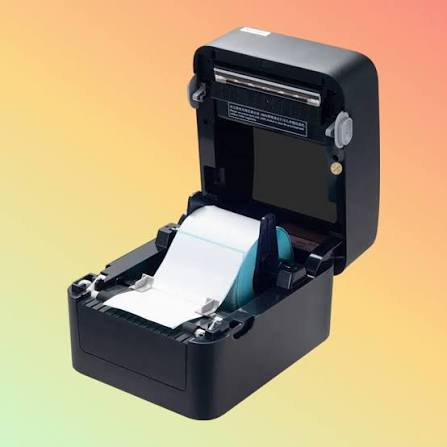
Even a clean printer can produce poor results when the label roll sits incorrectly.
Make sure the roll is positioned securely and that the labels follow the correct path through the printer. The media should remain straight rather than pulling toward one side.
If labels consistently shift during printing, check the loading position before assuming the printer has a mechanical fault.
Check the Print Quality
Regularly inspect your printed labels. Small changes in print quality can provide an early warning that maintenance may be necessary.
Look for:
- Faded sections
- Missing lines
- Uneven darkness
- Smudged areas
- Crooked printing
- Incomplete barcodes
Do not ignore these signs, especially when printing labels that need to be scanned. A barcode that looks acceptable at a glance may still cause problems at a scanner.
Keep the Printer in a Suitable Environment
Where you place the printer can affect its condition. Excessive dust, humidity, heat, or direct sunlight may create problems over time.
Keep the printer on a stable surface and avoid placing it near sources of liquid or excessive heat. When the printer remains unused for an extended period, protecting it from dust can also help.
Check Cables and Connections
Maintenance is not limited to cleaning. Check the power and data connections occasionally, especially if the printer starts disconnecting or print jobs fail unexpectedly.
A loose cable can create symptoms that look like a printer problem when the hardware itself works correctly.
For network-connected models, also check the network connection if the printer suddenly becomes unavailable.
Keep Printer Settings Correct
Incorrect settings can sometimes look like hardware problems.
Check the selected label dimensions, print speed, darkness, orientation, and media settings when output changes unexpectedly.
If you switch to a different label size or material, update the relevant settings before starting a large print batch.
Do Not Ignore Unusual Sounds
A new grinding, clicking, or repeated mechanical sound deserves attention. It may indicate that something has become misaligned, obstructed, or worn.
Stop the printer if the noise becomes severe or the media repeatedly jams. Continuing to operate a printer with a mechanical problem can potentially cause further damage.
For internal mechanical issues, follow the manufacturer’s service recommendations rather than attempting repairs without the necessary knowledge.
Create a Simple Maintenance Routine
A basic routine makes maintenance easier to remember.
For regular users, the routine might include:
- Daily: Check the printed output and remove obvious debris.
- Weekly: Inspect the label path, roller, and media compartment.
- As needed: Clean the print head and platen roller according to the manufacturer’s instructions.
- Periodically: Inspect cables, connections, and other accessible components for signs of wear.
The exact schedule should match your printing volume and the manufacturer’s maintenance guidance.
Also, see The Ultimate Guide to Buying Thermal Printers at Wholesale Prices
When Should You Get Professional Help?
Some problems go beyond routine cleaning. Persistent alignment issues, damaged components, repeated paper jams, or serious mechanical noises may require professional attention.
Avoid disassembling internal components unless you know what you are doing and the manufacturer specifically allows that type of service.
A professional repair can make more sense than risking additional damage through an unsuccessful DIY fix.
Final Thoughts
Keeping a label printer in good condition mainly comes down to cleanliness, correct media, proper loading, and regular checks. Simple maintenance can help prevent common issues such as faded printing, feeding errors, and barcode problems.
Build a routine around your actual printing volume rather than waiting until the printer stops working. A few minutes of regular care can help keep your label printing process reliable over the long term.